Importing Data#
This guide covers the ways to load existing data into a Dolt database. Jump to your source format or use case:
- CSV, JSON, Parquet files —
dolt table importandLOAD DATA - MySQL databases —
mysqldump+dolt sql - Postgres databases —
pg_dump+pg2mysql+dolt sql - Spreadsheets — Excel files via
dolt table import, or DoltHub’s spreadsheet UI - Pandas DataFrames —
to_sqlover SQLAlchemy - Hosted Dolt deployments — server settings to flip for bulk imports
Before starting a large import (anything on the order of tens of gigabytes or above) read Import best practices first — most of the perf complaints we hear come down to one of the items in that section.
Import best practices#
The following apply across every import path. They get more important as the database gets larger; for a ~50 GB+ import they’re effectively required, not optional.
Defer foreign keys, unique indexes, and secondary indexes#
The single biggest perf lever on a large import is to land the rows first and constrain them after. Adding indexes and foreign keys to a table that already holds 100 M rows is much faster than maintaining them while those rows stream in.
If you control the schema, define the table with just its primary key and
column definitions, run the import, and then add the foreign keys, unique
indexes, and secondary indexes with ALTER TABLE:
CREATE TABLE orders (
    id BIGINT PRIMARY KEY,
    user_id BIGINT NOT NULL,
    sku VARCHAR(64) NOT NULL,
    placed_at DATETIME NOT NULL,
    total_cents BIGINT NOT NULL
);

-- ... import the rows ...

ALTER TABLE orders ADD INDEX idx_user (user_id);
ALTER TABLE orders ADD INDEX idx_placed (placed_at);
ALTER TABLE orders ADD CONSTRAINT fk_user
    FOREIGN KEY (user_id) REFERENCES users (id);
Disable foreign key checks during the import#
If you can’t drop the foreign keys (for example, because you’re loading a dump file that creates the schema and inserts rows in the same script), disable foreign key checks for the session that runs the import. Dolt honors the standard MySQL session variable:
SET FOREIGN_KEY_CHECKS=0;
-- ... INSERT / LOAD DATA / source dump.sql ...
SET FOREIGN_KEY_CHECKS=1;
mysqldump already wraps its output in SET FOREIGN_KEY_CHECKS=0; /
SET FOREIGN_KEY_CHECKS=1;, so importing a mysqldump file with
dolt sql < dump.sql gets this behavior automatically.
Note that SET UNIQUE_CHECKS=0; is currently a no-op in Dolt — unique
constraints are always enforced as rows are inserted. The only way to
defer unique-constraint checking is to defer the unique index itself, per
the section above.
Re-verify constraints once checks are back on#
SET FOREIGN_KEY_CHECKS=1 only re-enables the check for subsequent
statements — it doesn’t retroactively validate rows you inserted while
checks were off. After the import, ask Dolt to walk the working set and
flag any rows that don’t satisfy the constraints. From the CLI:
dolt constraints verify --all--all is important here: without it, only rows changed since the last
commit are checked, which misses everything if you committed mid-import.
See dolt constraints verify
for the full option list.
The SQL equivalent is the DOLT_VERIFY_CONSTRAINTS() procedure:
CALL DOLT_VERIFY_CONSTRAINTS('--all');Either way, violations land in the
dolt_constraint_violations
system table. The query returns the count of violations; a successful
import returns 0. If it returns a non-zero count, inspect:
SELECT * FROM dolt_constraint_violations;and fix the offending rows (or roll back) before committing. Dolt will
refuse to create a commit while dolt_constraint_violations has rows.
Garbage-collect between back-to-back imports#
Each large import generates a lot of unreferenced chunks. If you’re running multiple imports against the same database, garbage-collect in between:
dolt gcor from a SQL session:
CALL DOLT_GC();This is otherwise harmless to run any time, and Dolt will eventually GC on
its own — running it explicitly just keeps the working set lean between
import jobs. See dolt gc.
Hand-written .sql import files#
If you’re generating an .sql file yourself rather than producing it with
mysqldump, three things matter for import speed:
- Import one table at a time. Don’t interleave
INSERTs across tables; finish one before starting the next. - Prefer multi-row
INSERTs. One statement that inserts 1,000 rows is meaningfully faster than 1,000 single-row statements. A few thousand rows per statement is a good batch size. - Sort
INSERTs by primary key. Dolt stores data in a B-tree keyed on the primary key; inserting in key order avoids rebalancing work. If a table doesn’t have a primary key, add one.
On large TEXT, JSON, and BLOB columns#
Older guidance recommended minimizing the use of blob types because of an
import perf penalty. That’s no longer the case as of Dolt 2.0, which
turns on adaptive encoding by default: short values in TEXT / JSON /
BLOB columns are stored inline with the rest of the row, and only values
that push the row past a size threshold are stored out-of-band. You don’t
need to avoid these types for perf reasons anymore. If you’re importing
into a table that uses very large blob values per row (multiple MB each),
expect import throughput to be dominated by the cost of writing those
values to disk regardless of the database technology.
CSV, JSON, and Parquet Files#
The easiest sources of data to work with are CSV, JSON, and Parquet files.
These pair best with the custom dolt table import command.
Importing with no schema#
Dolt supports importing csv files without a defined SQL schema. Consider
the following csv file:
pk,val
1,2
2,3
We can import and create a table as follows:
dolt table import -c --pk=pk mytable file.csv

Rows Processed: 2, Additions: 2, Modifications: 0, Had No Effect: 0
Import completed successfully.
We can query the table and see the new schema and data:
> dolt sql -q "describe mytable"
+-------+--------------+------+-----+---------+-------+
| Field | Type         | Null | Key | Default | Extra |
+-------+--------------+------+-----+---------+-------+
| pk    | int unsigned | NO   | PRI |         |       |
| val   | int unsigned | NO   |     |         |       |
+-------+--------------+------+-----+---------+-------+

> dolt sql -q "select * from mytable"
+----+-----+
| pk | val |
+----+-----+
| 1  | 2   |
| 2  | 3   |
+----+-----+
You can reference the dolt table import documentation for additional ways to modify your database such as updating or replacing your existing data.
Importing with a schema#
In the case of JSON or Parquet files we require you provide a schema in the form of a CREATE TABLE SQL statement. You can also specify a schema for a csv file. Let’s walk through the following file.
{
  "rows": [
    {
      "id": 0,
      "first name": "tim",
      "last name": "sehn",
      "title": "ceo"
    },
    {
      "id": 1,
      "first name": "aaron",
      "last name": "son",
      "title": "founder"
    },
    {
      "id": 2,
      "first name": "brian",
      "last name": "hendricks",
      "title": "founder"
    }
  ]
}
Our sql schema will look like this:
CREATE TABLE employees (
    `id` LONGTEXT NOT NULL,
    `first name` LONGTEXT,
    `last name` LONGTEXT,
    `title` LONGTEXT,
    PRIMARY KEY (`id`)
);
Putting it all together
> dolt table import -c -s schema.sql employees file.json
Rows Processed: 3, Additions: 3, Modifications: 0, Had No Effect: 0
Import completed successfully.

> dolt sql -q "select * from employees"
+----+------------+-----------+---------+
| id | first name | last name | title   |
+----+------------+-----------+---------+
| 0  | tim        | sehn      | ceo     |
| 1  | aaron      | son       | founder |
| 2  | brian      | hendricks | founder |
+----+------------+-----------+---------+
Using LOAD DATA#
You can also use the MySQL LOAD DATA command to work with data that is compatible with the LOAD DATA api. For example you can load the above file.csv as follows:
create table test(pk int, val int);
LOAD DATA INFILE '/Users/vinairachakonda/misc/test/file.csv' INTO table test FIELDS TERMINATED BY ',' IGNORE 1 LINES;
Selecting from above you get
test> select * from test;
+----+-----+
| pk | val |
+----+-----+
| 2  | 3   |
| 1  | 2   |
+----+-----+
MySQL Databases#
Migrating your MySQL database to Dolt is easy. We recommend the mysqldump program. Let’s say you have MySQL server with the following configuration
user: root
password:
host: 0.0.0.0
port: 3306
database: test
You can dump the database test as follows:
mysqldump --databases test -P 3306 -h 0.0.0.0 -u root -p > dump.sqlNote: Using the --databases flag will cause mysqldump to include a command to create the database for you if it doesn’t exist yet. Without this flag, you will need to ensure you have already created your database (e.g. create database test;) before you can load in the mysqldump file.
To load into dolt:
dolt sql < dump.sqlmysqldump files already disable foreign key checks for the duration of
the import, so the foreign-key best practice
is handled automatically. Once the import completes, run
dolt constraints verify --all (see Re-verify constraints once checks
are back on) before
creating your first commit.
Hosted Dolt Deployments#
Importing data into a Hosted Dolt deployment can be done using the deployment’s default configuration. Let’s say you’ve dumped an existing MySQL database using mysqldump and want to import that dump into your Hosted Dolt deployment.
Navigate to the “Configuration” tab of your Hosted deployment dashboard, and make sure that the box behavior_auto_commit is checked. This will automatically create SQL COMMITs after every statement is executed, ensuring the data is persisted after each import statement is executed.
Also, make sure that the box behavior_disable_multistatements is unchecked. This is required for importing dumps, as they often combine multiple statements into single strings.
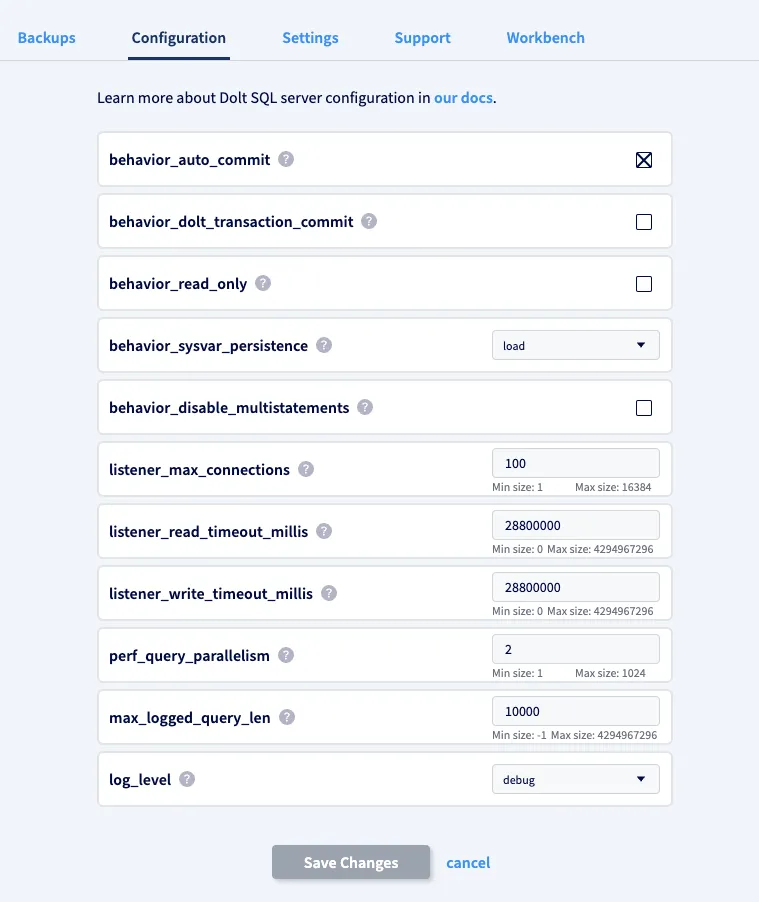
New Hosted deployments will have these correct server configuration settings by default. Please note that altering them prior to performing an import has been known to cause some imports to fail.
With the above settings in place, you can import the SQL dump using a standard MySQL client or database tool:
mysql -h my-deployment.dbs.hosted.doltdb.com -u <user name> -p<password> database < dump.sqlPostgres#
You can load a postgres database into dolt with our custom pg2mysql tool. If you have a postgres database you can export a postgres dump file with the pg_dump utility.
With a postgres dump file of file.pgdump you can convert it into a mysql dump as follows.
./pg2mysql.pl < file.pgdump > mysql.sqlFinally, you can load the mysql file into dolt.
dolt sql < mysql.sqlSpreadsheets#
There are multiple ways to get spreadsheet data into Dolt. The first is with dolt table import. Consider the following excel file: employees.xlsx
0,tim,sehn,ceo
1,aaron,son,founder
2,brian,hendricks,founder
Just like a csv file we run the command dolt table import -c --pk=id employees employees.xlsx to load the excel file
into our Dolt. Be sure to give the same name for the table as the spreadsheet’s name.
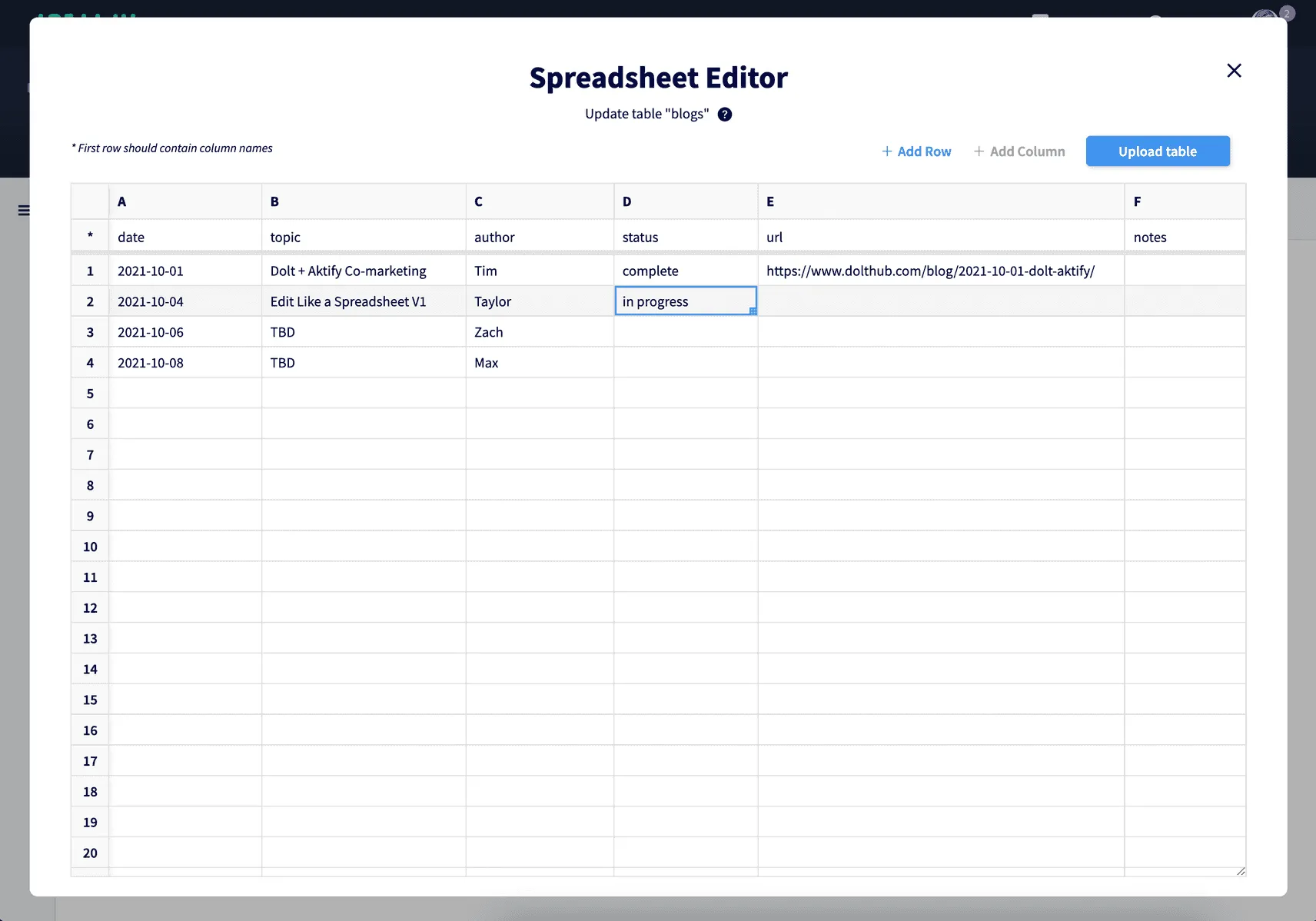
The other way to work with spreadsheet data is with Dolthub’s “edit like a spreadsheet” feature. You can create a SQL table from scratch with just typing values into a spreadsheet.
Pandas Dataframe#
We recommend standard MySQL + Python techniques when integrating Dolt with Pandas. First you want to connect to your Dolt database with the SQLAlchemy ORM. Here’s some sample code below:
from sqlalchemy import create_engine
import pymysql
import pandas as pd

# Define a data frame
employees = {
    "id": [0, 1, 2],
    "FirstName": ["Tim","Aaron","Brian"],
    "LastName": ["Sehn", "Son", "Hendriks"],
    "Title": ["CEO", "Founder", "Founder"],
}

tableName = "employees"
dataFrame = pd.DataFrame(data=employees)

# Create an engine that connect to our dolt sql-server.
sqlEngine = create_engine("mysql+pymysql://root:@127.0.0.1/test", pool_recycle=3600)
dbConnection = sqlEngine.connect()

try:
    frame = dataFrame.to_sql(tableName, dbConnection, if_exists="fail")
    print("Table %s created successfully." % tableName)
except Exception as ex:
    print(ex)
finally:
    dbConnection.close()
In the above example we are creating a data frame of employees and writing it to our Dolt database with the to_sql function. We can then use the read_sql function to read back data from our MySQL database into Dolt.
frame = pd.read_sql('SELECT * from employees', dbConnection)
print(frame)

#    index  id FirstName  LastName    Title
# 0      0   0       Tim      Sehn      CEO
# 1      2   2     Brian  Hendriks  Founder
# 2      1   1     Aaron       Son  Founder
The second way to do this is by exporting your pandas dataframe as a csv file which can then be imported with dolt table import.
>>> import pandas as pd
>>> df = pd.DataFrame({'name': ['Raphael', 'Donatello'],
...                    'mask': ['red', 'purple'],
...                    'weapon': ['sai', 'bo staff']})
>>> df.to_csv('out.csv', index=False)