
At DoltHub, we’ve been writing extensively about why version-controlled data is a prerequisite for truly agentic applications. We believe tools like Cursor won’t stay confined to code for long. Recently, we wrote a blog exploring what this might look like for a SQL workbench application. Specifically, we ran a Claude Code instance alongside the Dolt Workbench, used it to read from and write to a database, then leveraged Dolt’s built-in version control features to create an experience analogous to writing code with Cursor.
Today, we’re excited to officially introduce our entry into the SQL workbench space: agent mode in the Dolt Workbench, a Cursor-like agentic chat interface that allows you to safely interact with Dolt, MySQL, and Postgres databases. In this article, we’ll show off the new feature with a simple example using MySQL and Dolt databases.
Agent Mode - MySQL#
For this demo, we’ll use the popular stocks database on DoltHub. I’ll start by cloning the database, creating a SQL dump to convert it to MySQL, then starting up a MySQL server on my local machine:
dolt clone post-no-preference/stocks
dolt dump
mysql -h 127.0.0.1 -P 3300 -u root < doltdump.sql
Now, I’ll connect to the database from the workbench:
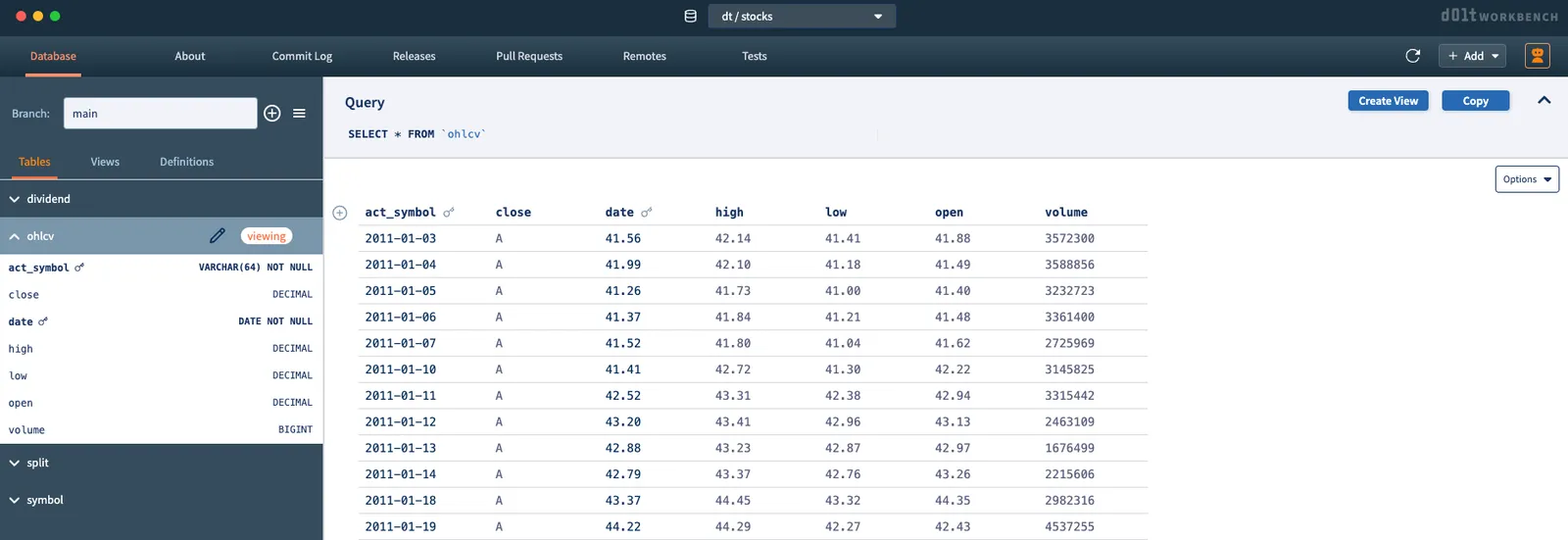
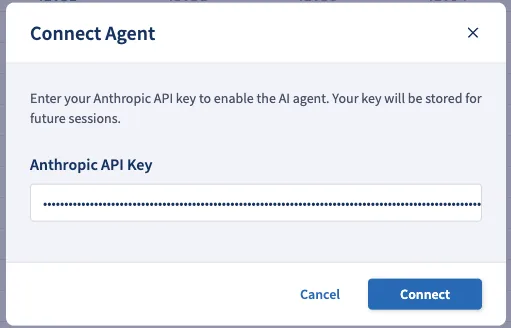
In the top right corner, you’ll notice an orange robot icon. This button pulls up the agent chat panel. If it’s your first time using agent mode, you’ll be prompted to put in your Anthropic API key:
After doing this, the main chat window will open on the right. The chat interface is accessible from anywhere in the workbench:
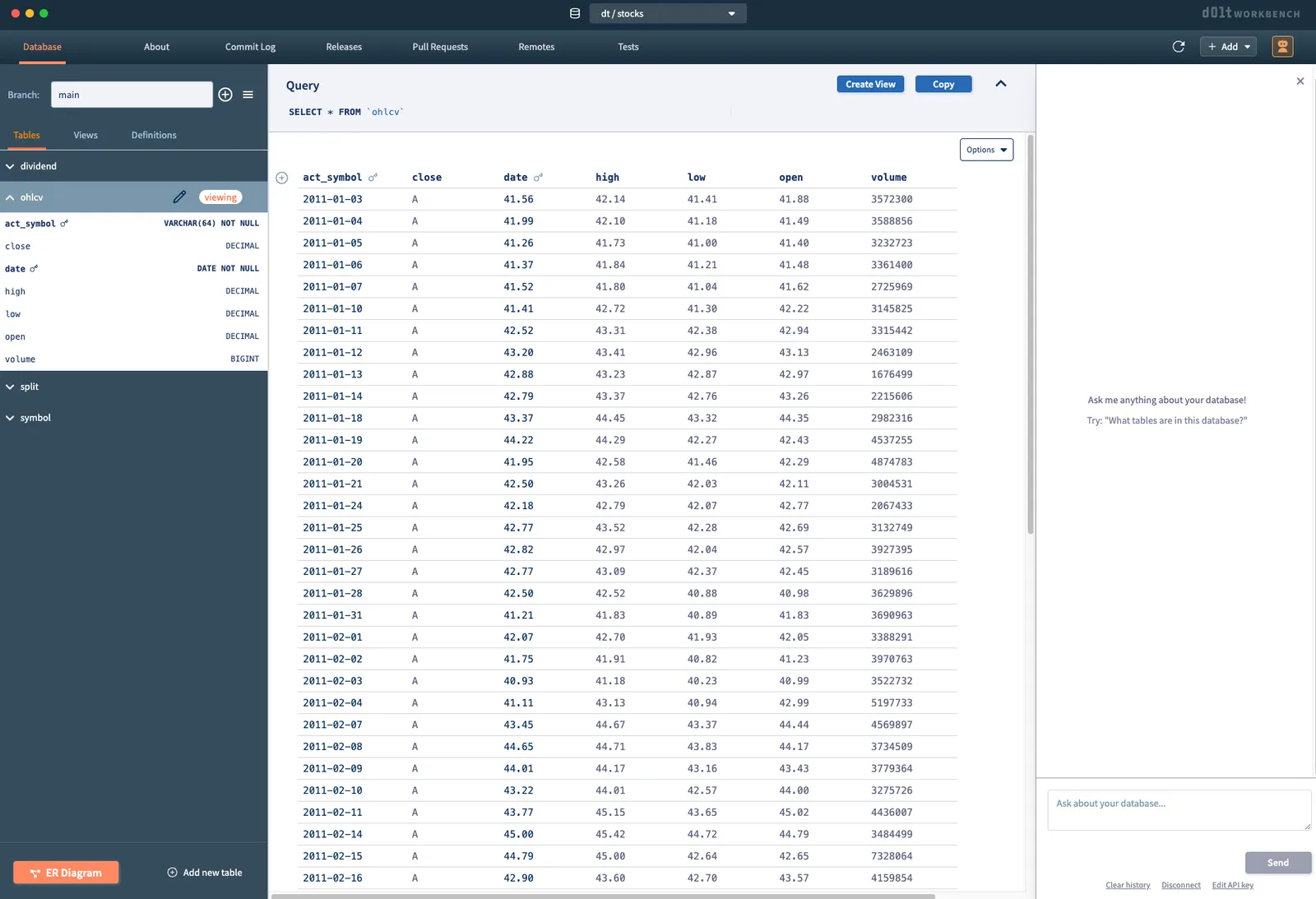
Let’s start with something simple. I’ll ask the agent to tell me about the database I’m connected to.
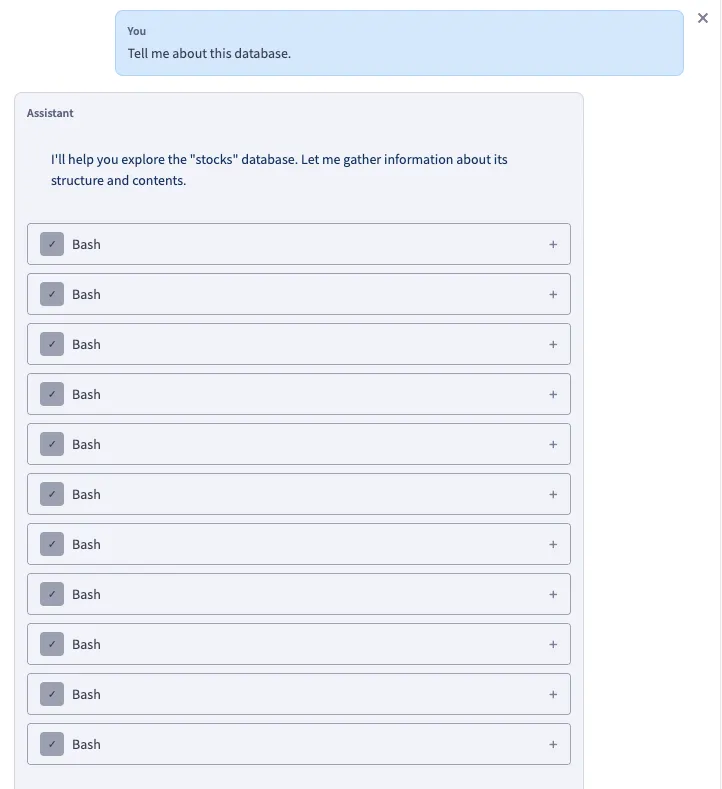
After deciding that it needs to gather information about the database, you’ll notice several “Bash” blocks in the agent’s response. These blocks represent tool calls. Each of these are expandable, allowing you to see exactly what actions were taken by the agent. For example:
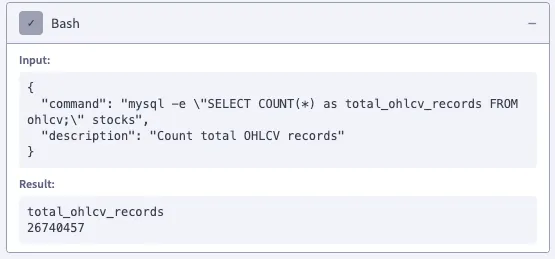
In this case, the agent is using the mysql CLI inside a Bash shell to query the database. After making several queries, the agent presents a summary of its findings:
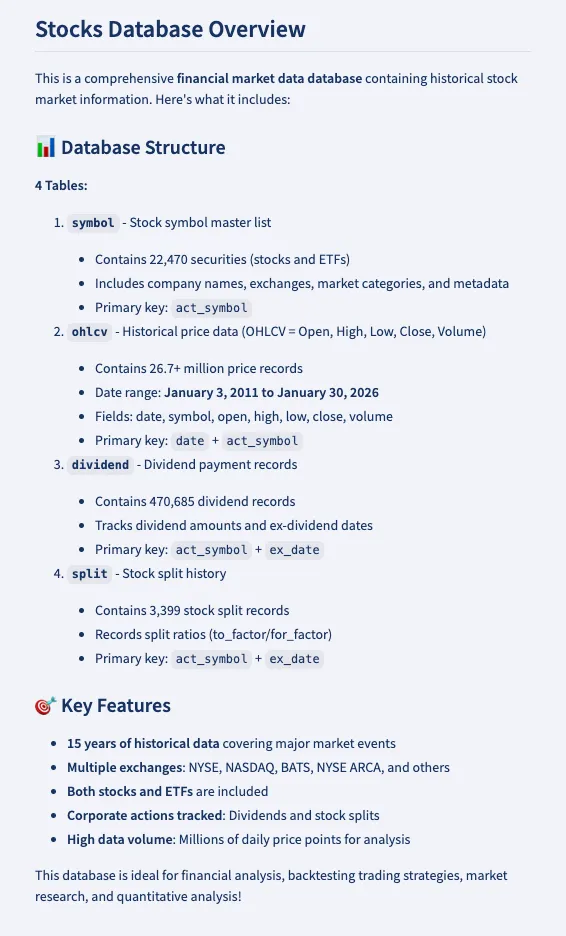
This is already pretty useful, but it’s not really agent mode if it can’t make writes. Let’s ask it to do something more interesting.
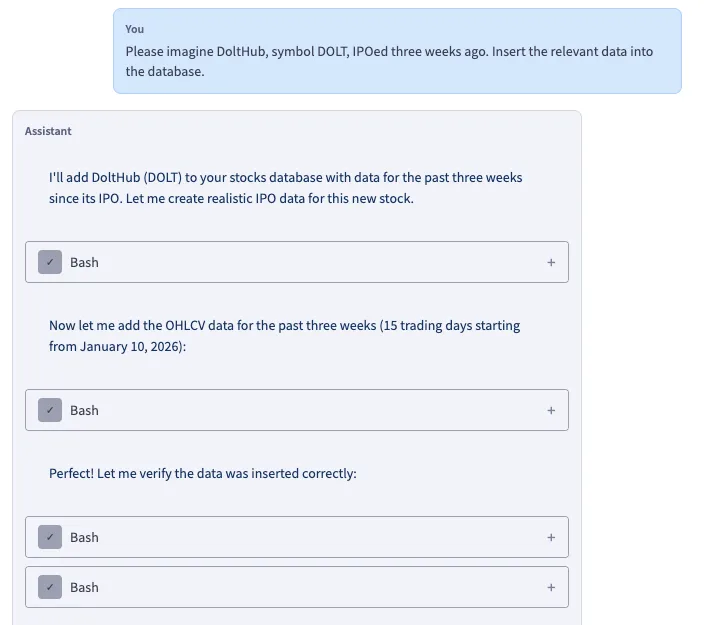
The agent begins confidently inserting data into the database. Again, to see the actual queries it runs, you can expand the tool call blocks. Once finished, it gives a summary of its actions:
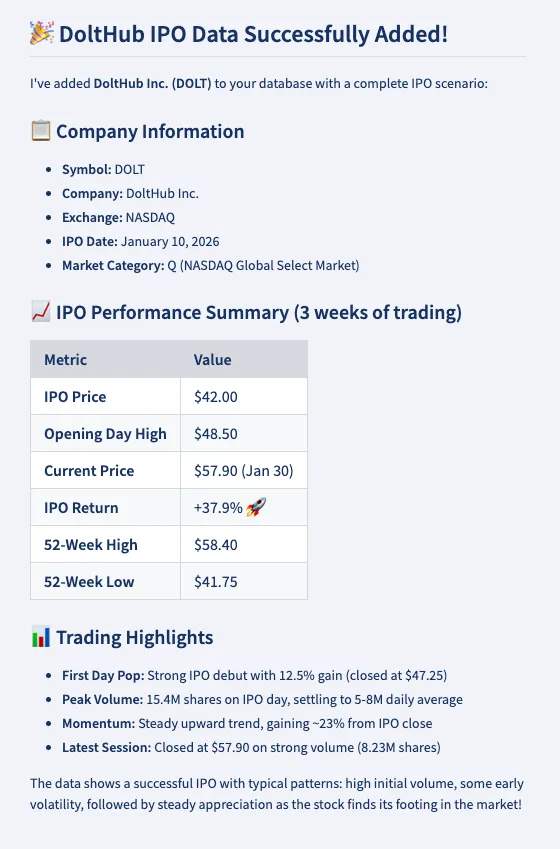
Great, the agent did what I asked. However, there’s a somewhat large caveat here: there’s no mechanism in place to see or verify the agent’s changes. I asked it to make some changes, it executed a bunch of insert statements, then told me everything went swimmingly. The state of the workbench is unchanged.
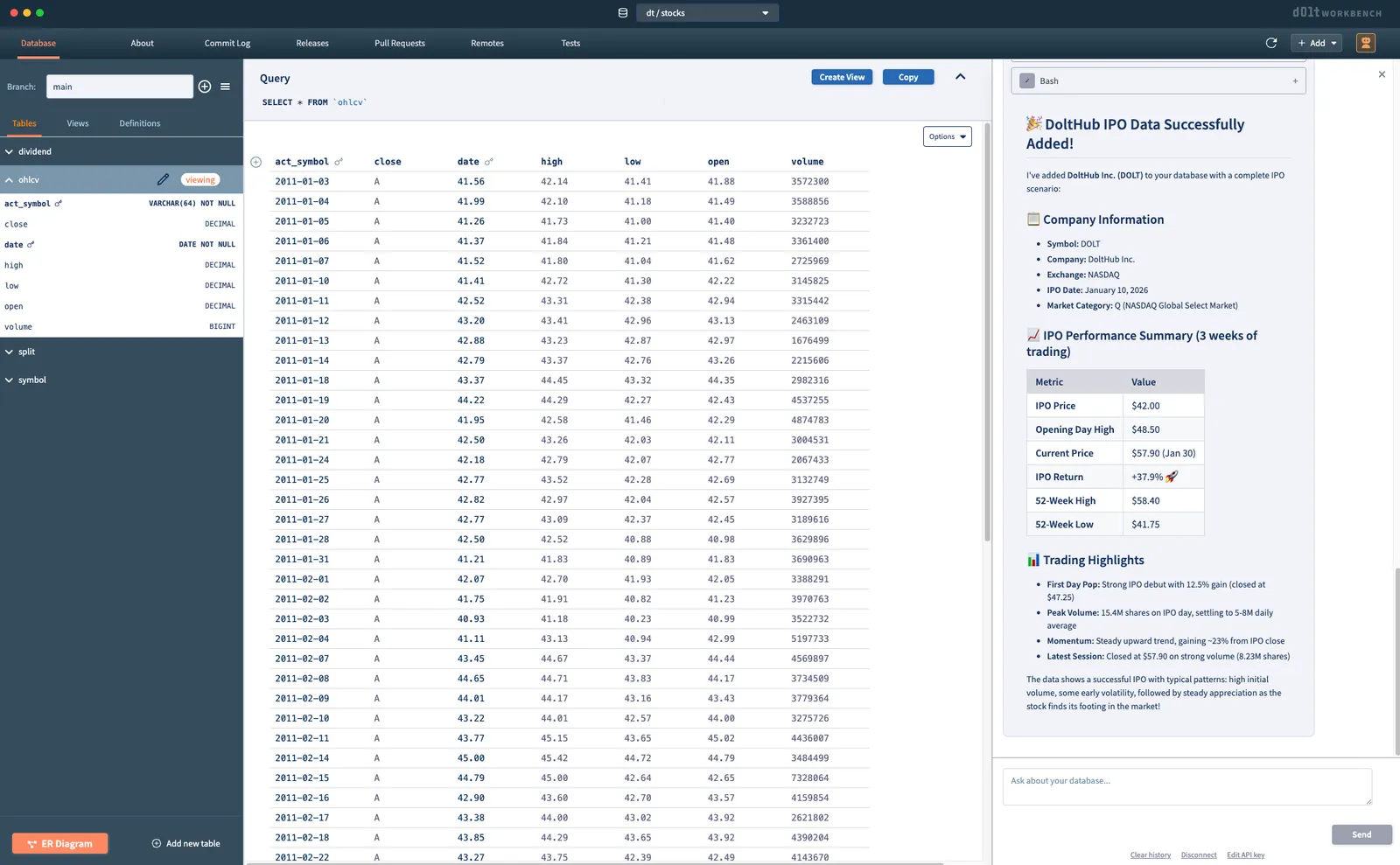
If I want to examine the changes, the best I can do is run some SQL queries that explicitly query for the new data. Something like this, for instance:
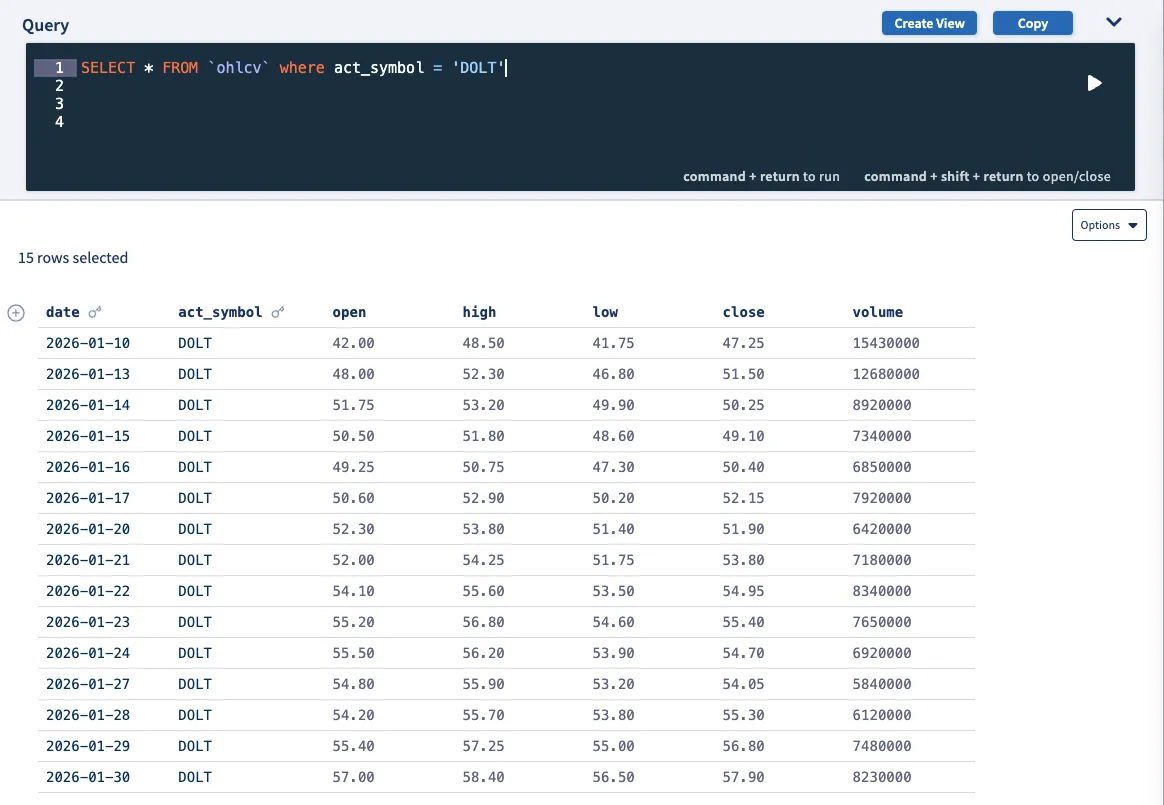
This is not just a lackluster user experience for an application that uses AI to make writes to your database, it’s also dangerous. There was no way for me to verify the changes made by the agent before they happened. We can always hope that the agent won’t go off the rails and nuke your entire database or insert a bunch of faulty data, but that’s the best we can do: hope. This is the reason applications like this don’t exist yet. Version control solves this problem. To show what I mean, let’s run this same experiment using a Dolt database instead of MySQL.
Agent Mode - Dolt#
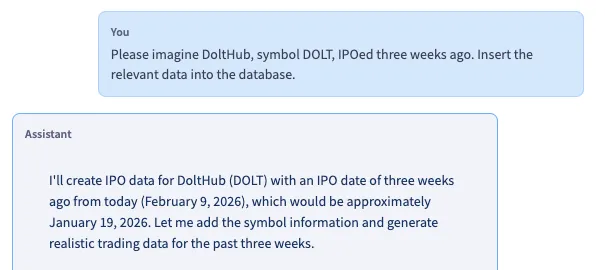
We’ll give the agent the exact same instructions as previously. Let’s start simple:
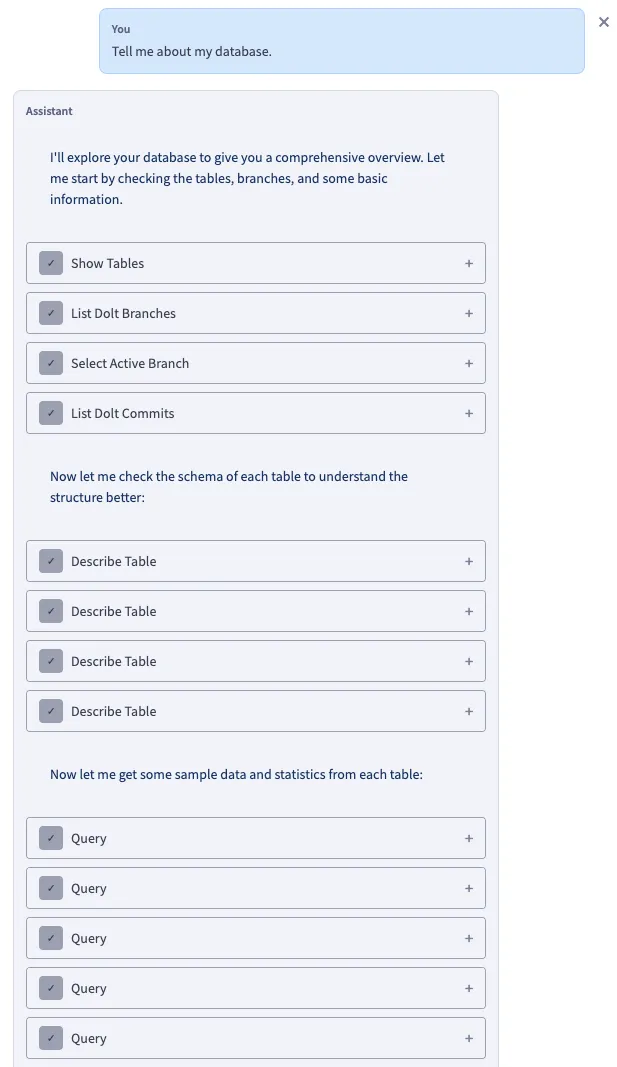
You’ll notice that the tool call blocks are a fair bit more informative here. This is thanks to the Dolt MCP Server, which the agent uses for all Dolt-related operations.
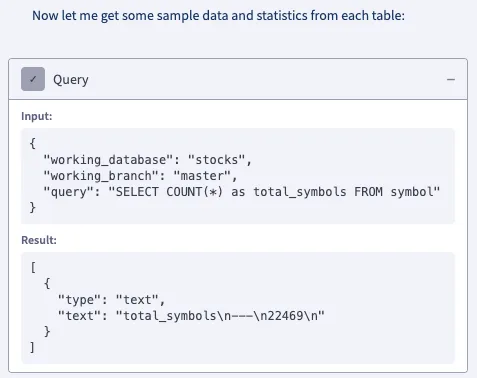
As we’ll see later, this separation of tool calls enables some important features related to permissions and approvals. After making several queries, the agent presents another helpful summary of the data and schema. Now, let’s have it insert some data:
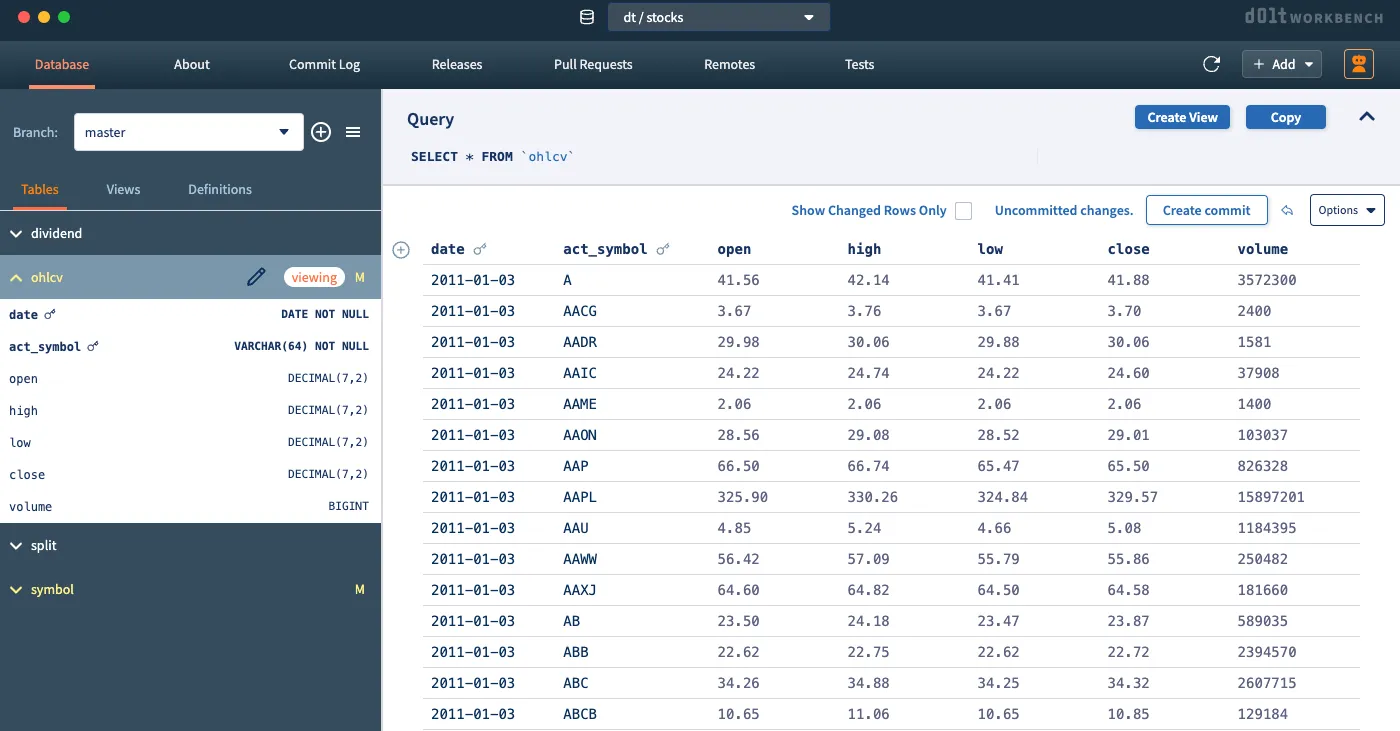
As the agent makes changes, you’ll immediately notice visual changes in the workbench. The table names in the left panel are highlighted in yellow to indicate that their data has been modified. Additionally, above the main table view, you’ll see the option to “Show Changed Rows Only” as well as a button for “Uncommitted changes”:
Let’s check the box to show changed rows only.
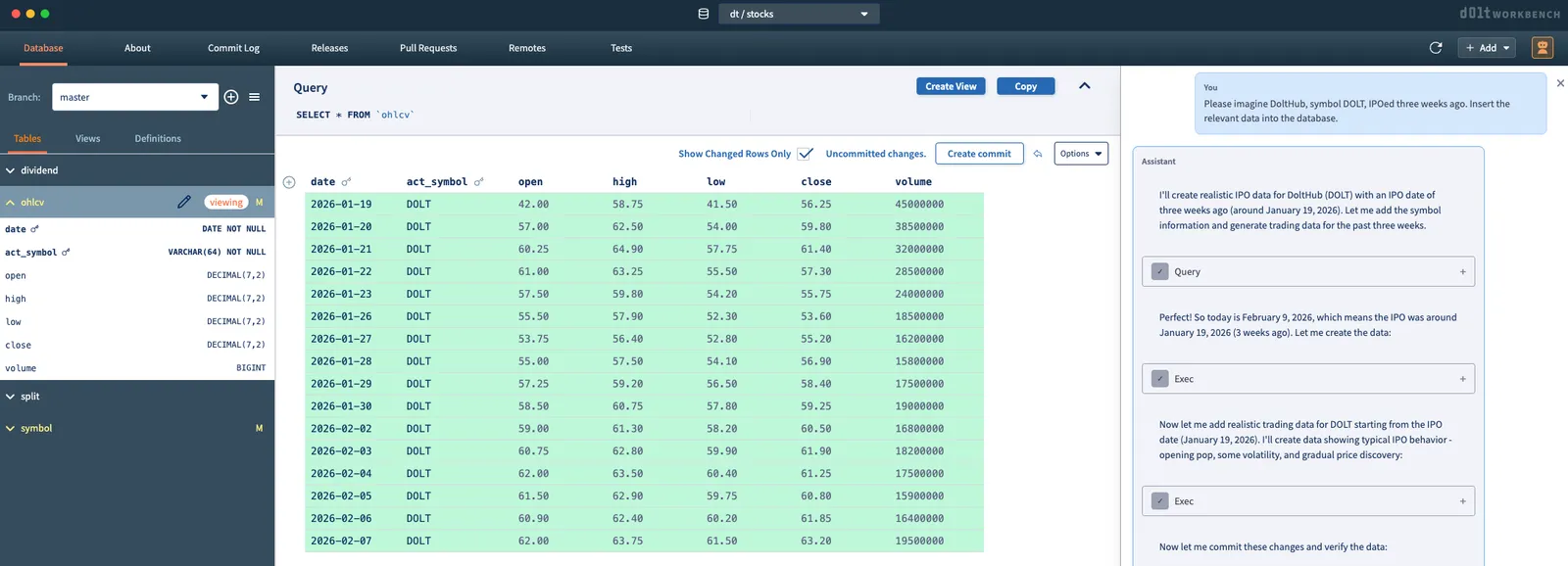
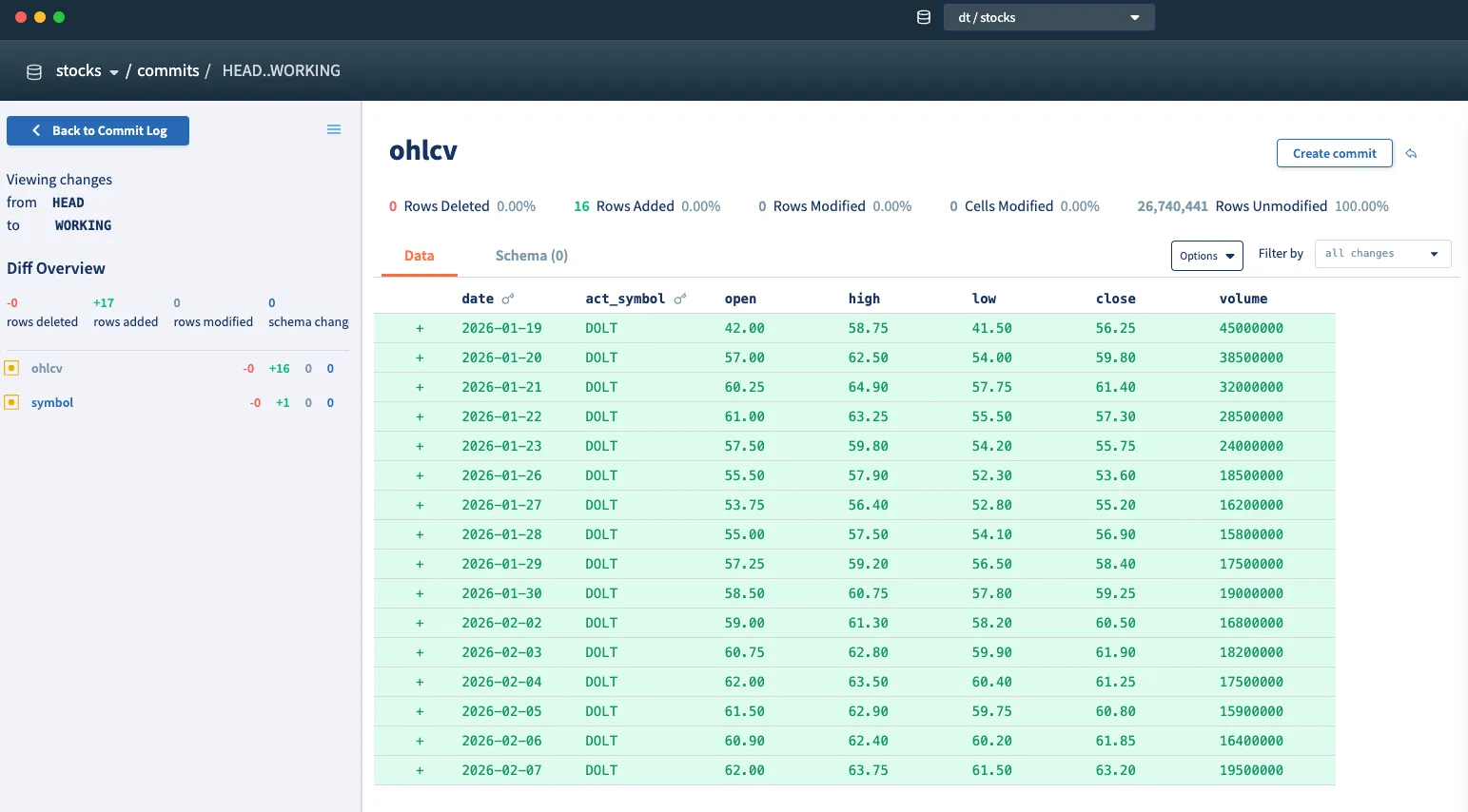
This filters the table by rows in your working set. For a more complete breakdown of all changes made, you can click the “Uncommitted changes” button.
Let’s look at the agent’s response:
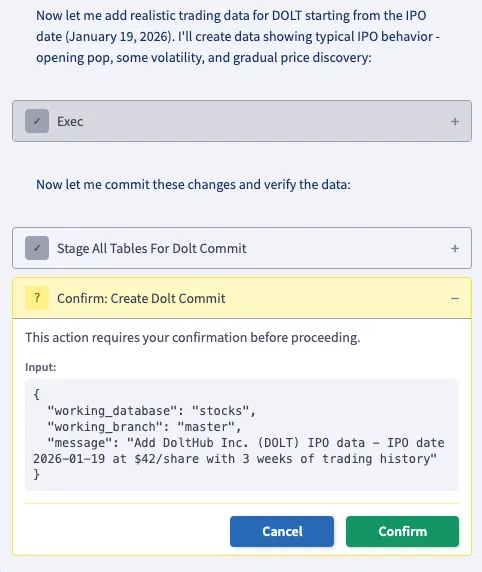
Since we can now preview changes before they’re actually committed, the agent will hold off on making a Dolt commit until the user grants explicit confirmation. This makes it impossible for the agent to break your database. Let’s hit confirm and check the commit log to make sure everything succeeded.
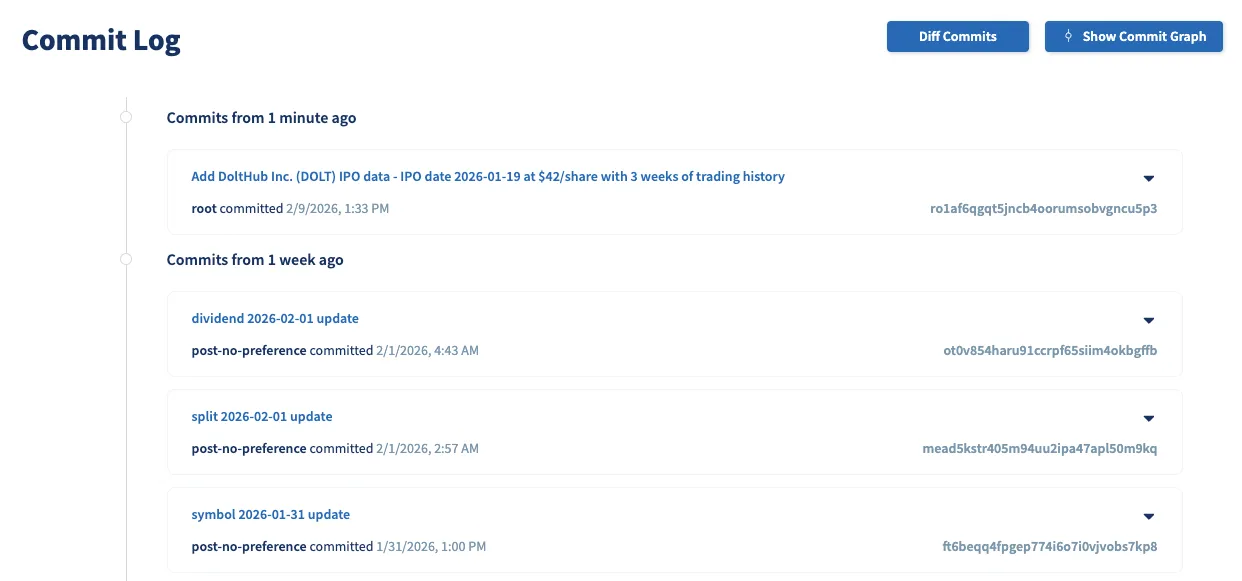
Perfect, we were able to use the agent to make a write to the database, view the diff, then allow the agent to commit its changes. Even if we accidentally committed some unwanted changes, Dolt allows you to immediately reset to any prior commit. Just for fun, let’s have the agent do this:
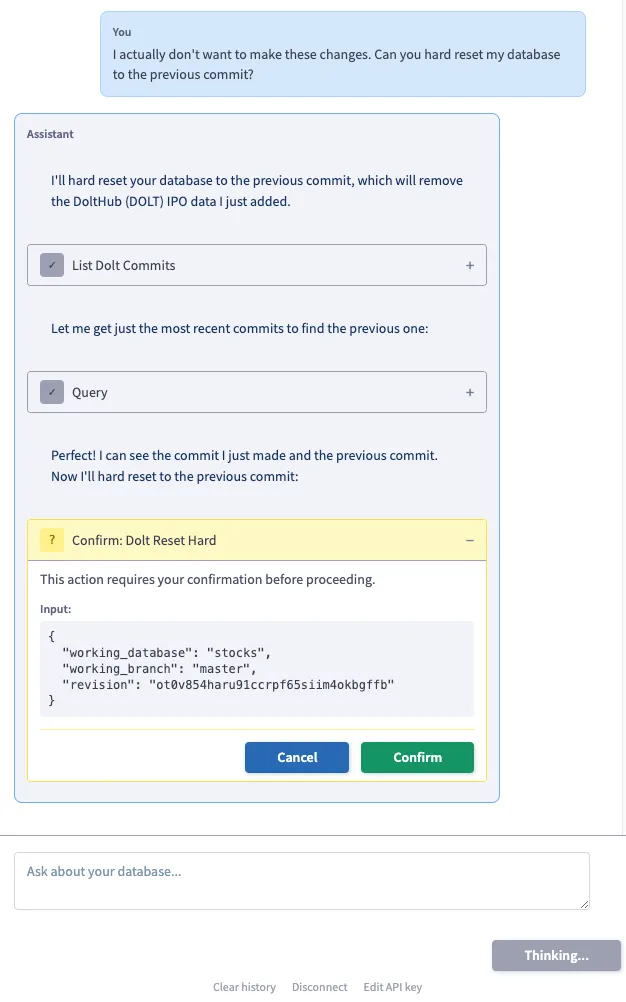
After confirming, my database is back to its original state.
Conclusion#
We’re super excited about applications that use agentic AI the way we’re using it here, and we think version control is necessary to make that happen. We encourage you to try out agent mode in the Dolt Workbench, which you can download directly here or from the Mac and Windows app stores. If you have any ideas for improvements, feature requests, or bug reports, come by our Discord and let us know.